Showing posts with label Annaica's Place. Show all posts

Tuesday, August 20, 2013

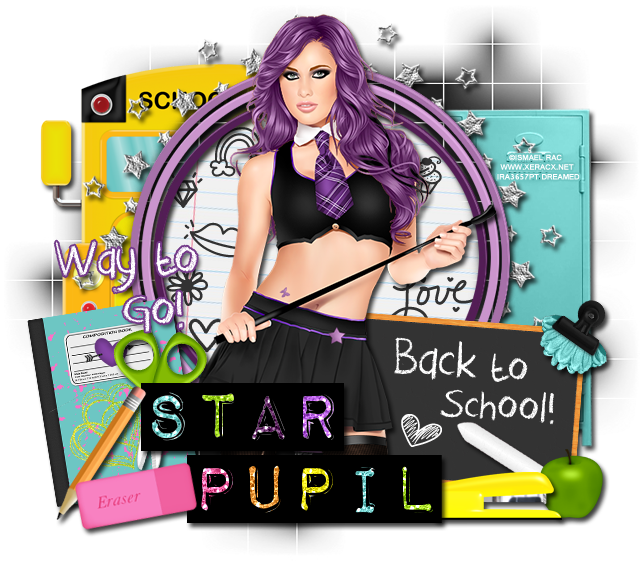
FTU Tutorial - Star Pupil

FTU tutorial using Star Pupil by Annaica's Place!
You can download this awesome back to school kit on her blog HERE!
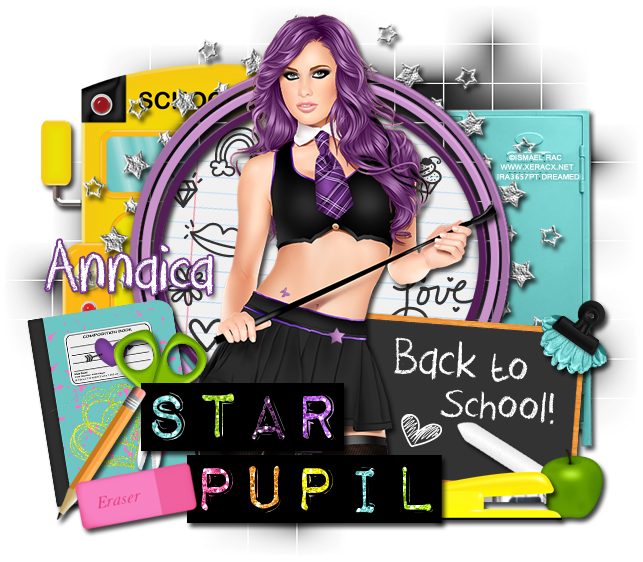
**This tutorial was written by me and any resemblance is purely coincidental. It is written for those with a working knowledge of Photoshop.**

Supplies

Font

Mask

Scrap Kit

Tube
*You must obtain a license to use this tube.*

Elements
1
2
3
4
5
6
7
8
9
13
19
23
29
Frame3
Frame4
WA

Papers
6
11

Let's start!
Open a new canvas, size 650x650.
Place Frame3 on the canvas. I changed the color to purple, but you can leave it as is or change. Resize and add a drop shadow.
Move paper6 behind the frame. Resize and erase anything outside the frame and in between the openings.
Place Frame4 behind the frame. Resize the stars are visible. Resize and add a drop shadow.
Place the tube in front of the frame. Resize and add a drop shadow.
Move the WA in front of the tube. Resize and add a drop shadow.
Behind the tube, place the chalkboard to the left. Resize and add a drop shadow.
Place 29 on the upper right hand corner of the chalkboard Resize and add a drop shadow.
Place 8 on top of the chalkboard. Resize and add a drop shadow.
Behind the WA and in front of the board, place 4 and flip horizontally. Resize and add a drop shadow.
Behind the stapler, place 13. Resize and add a drop shadow.
Move 3 behind the WA on the left. Resize and add a drop shadow. Rotate to the left a little.
Place 5 on top of the notebook and behind the wordart, flip vertically. Resize and add a drop shadow.
Place the eraser on top of the wordart and the notebook. Resize and add a drop shadow.
Move the pencil between the eraser and the notebook then rotate it vertically and at an angle. Resize and add a drop shadow.
Move the school bus behind the frame on the left side. Resize and add a drop shadow.
Move the lockers on the other side behind the frame and bus. Resize and add a drop shadow.
Erase anything of the bus and lockers that are seen between the frame.
Place 19 and 23 on the notebook as "doodles". Resize as needed.
Take the Crayon font and write "Back to School" on the chalkboard in white.
Use the VBdings and place a heart in the open spot on the board in white.
Take VBdings on use different doodles on the notebook paper behind the frame.
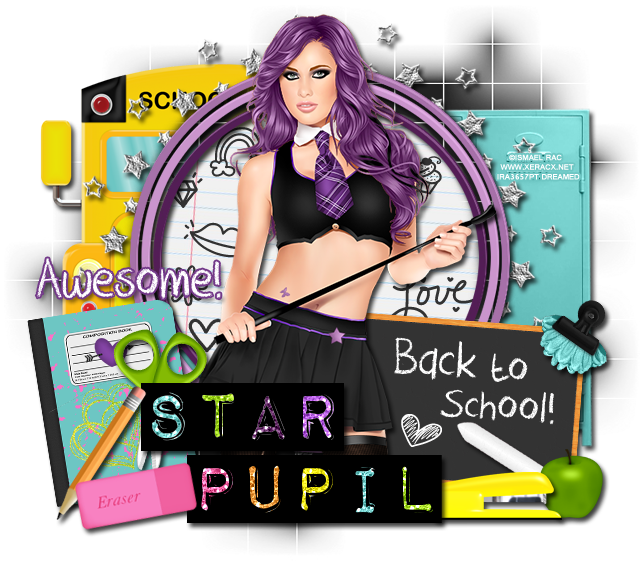
 Name
Font is DK Crayon Crumble
Main color is white.
Add a stroke, size 2, in #733989 and a drop shadow.
For the heart on the chalkboard and the others on the paper, use VBdings.
Use #323232 for the ones on the notebook paper.

Mask
Open a new canvas, size 600x600.
Open p11 and resize to 600x600. Place on top of the canvas.
Open the mask and move on top of the paper.
Remove the white background and place the mask behind the tag. 
Make it evenly stretched on all sides.

Add your tagger mark and copyright information.
Crop off any extra canvas.
Save as a .psd & .png.

Free Snags!
Thank you for coming by!

Sunday, June 23, 2013

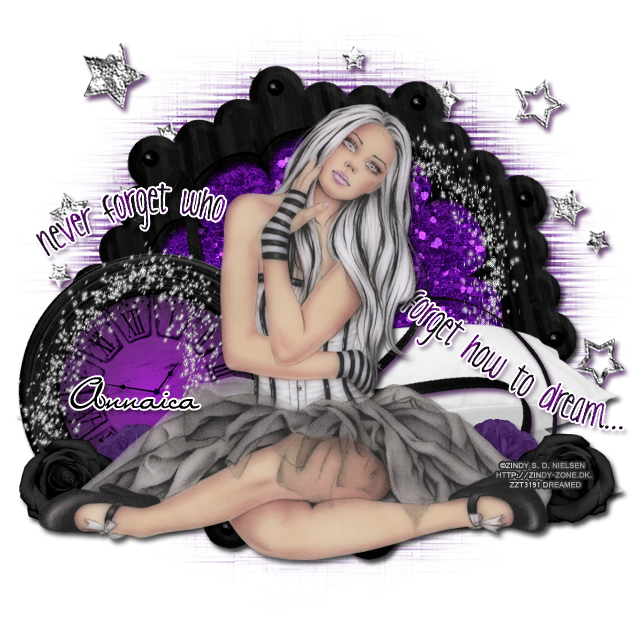
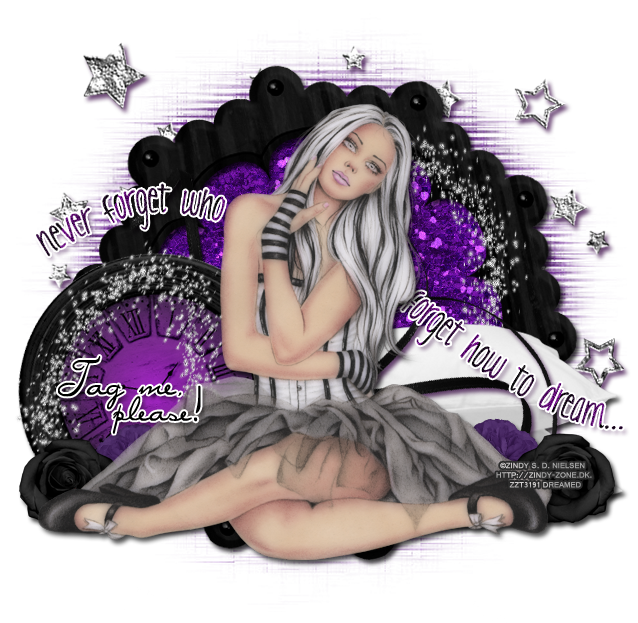
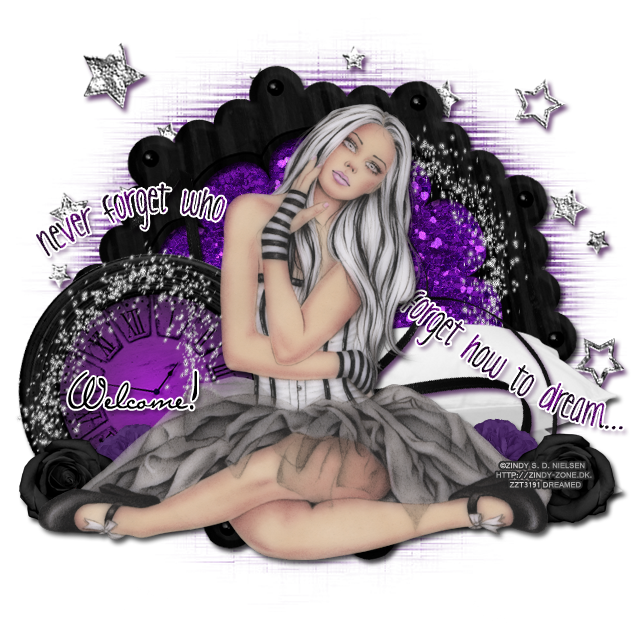
PTU Tutorial "Dark Dreamer"

I have a new PTU tutorial using Dark Dreamer by Annaica's Place. I matched it with a tube by Zindy S.D. Nielsen.


**This tutorial was written by me and any resemblance is purely coincidental  It is written for those with a working knowledge of Photoshop.**

What you will need:
Filter
Xero Porcelain

Font

Mask
WSL_Mask216

Scrap Kit
by Annaica's Place

Tube
Doll At Heart
*You must obtain a license to use this tube.*

Elements
2
10
22
23
35
37
45
52
55

Papers
9
14

Let's begin!
Open a blank canvas, size 650x650.

Move Element52 on the blank canvas. Rotate a little and add a drop shadow.

Place the tube in front of the frame. Resize and add a drop shadow.
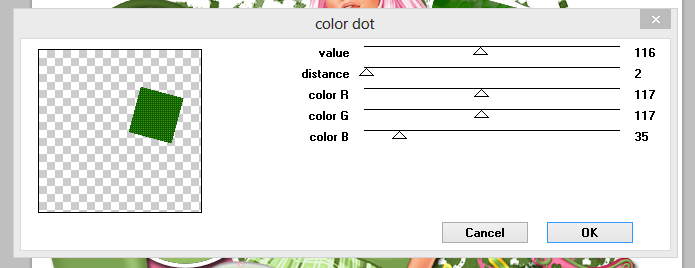
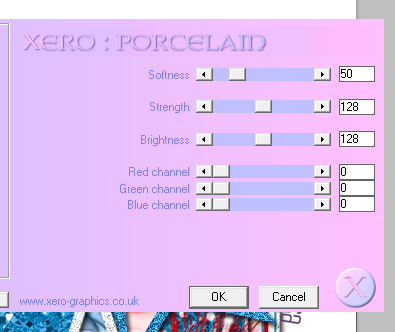
Add these settings using Xero Porcelain to the tube.


Behind the tube, place Paper14 behind the frame. Erase extras outside the frame. Move Paper9 on top of Paper14, create a clipping mask, and then change it to overlay. 

Move Element10 behind the tube on the left. Resize and add a drop shadow.

Place Element2 behind the tube on the right side. Resize and add a drop shadow.

Move Element22 behind the tube on the left, but in front of the clock. Resize and add a drop shadow.
Move Element23 behind the black flower. Resize and add a drop shadow.
Duplicate the black and purple flower and move to the other side behind the tube and in front of the pillows.

Place Element45 behind the tube, but in front of the pillows and behind the clock. Resize and add a drop shadow in #3a0a47.

Now take Element37, place it on top of the frame and behind everything else above the frame. Rotate so you have the curve behind her head on the right. Resize. Duplicate and place it behind the tube and on top of the clock.  Resize and rotate so you the swirl at the top of the clock.

Move Element35 behind the papers and frame. Resize and add a drop shadow #3a0a47.
Duplicate a couple more times so you can have the stars around the top half of the frame. 

Now move element55 behind the tube and on top of the pillows and ribbon. Have it flow over the elements like I did. Add a white stroke, size 2 and add a drop shadow, color #3a0a47.

Let's make the mask:
Open a new canvas, size 600x600.
Open your mask and make sure it is also 600x600.
Open Paper14 again and resize it to 600x600.
Place the Paper on top of the blank canvas and then move the mask on top of the paper.
Remove the white background and place the behind the stars and frame.
Stretch the mask out so you can see it around the frame. 

For the name:
The font is Miss Brooks
The main color is black and add a white stroke, size 2.
Move it over the clock in a smaller size.

I have a few freebie snags for you!


Thanks for stopping by! Please leave some love :)

Thursday, June 6, 2013

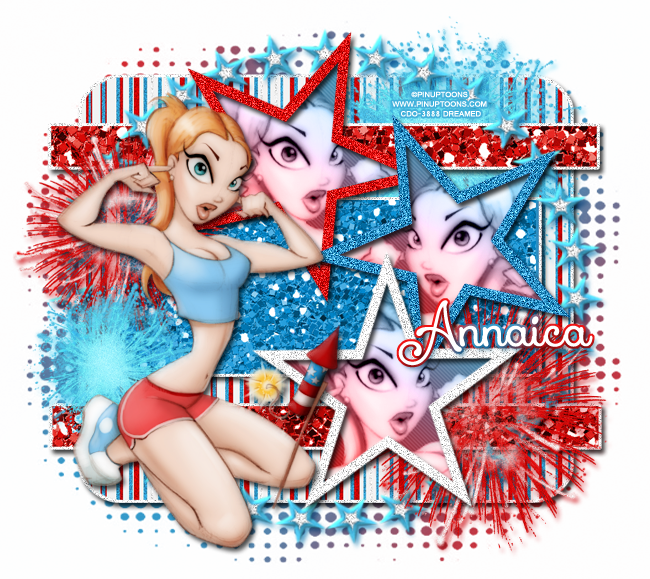
New PTU Tutorial "Firecracker"

I have a new PTU tutorial using Firecracker, a fun new kit by Annaica's Place. It was perfectly matched by Pin Up Toons.


**This tutorial was written by me and any resemblance is purely coincidental. It is written for those with a working knowledge of Photoshop.**

What you will need:

Filters
Xero Radiance
Xero Porcelain
Penta - Jeans

Font
Xiomara by Nymphont
Download at FontSpace.

Template
Born In The USA Template by Jackie's Jewels
Download it here.

Tube
Pin Up Toon 4-3
Buy it here.
*You must obtain a license in order to use this tube.*

Elements
3
4
39

Papers
1
8
10

Let's get started!

Open a new canvas size 650x650.

Open the Born In The USA template. Link all the layers except the credits, WA (wordart), and background.
Move the template over to the blank canvas. Resize so no parts of the template hang off the canvas. Make sure there is even space around the template so you have room for things to hang off the template.

Move Paper 1 on top of Layer 1 of the template. Resize the paper so it covers Layer 1 just a little. Creat a clipping mask. Now right click on Layer1 and Select Pixels, expand by 2. Add a new layer below it and fill with white. Add noise to the white layer at 20%. Repeat this step for each layer in the template except the stars. 

Now with Layer 3 & 4, add Paper 10 to each layer. Resize the paper so it doesn't look too oversized and create a clipping mask. Do it for both layers. 

For Layer 2, move Paper8 over it, resize, and create a clipping mask. 

Now let's work on the stars. I used Paper2 for my colors. 
For the red star, select the pixels and fill with the red on the paper. Add noise at 20%.
For the blue star, select the pixels and fill the darker blue on the paper. Add noise at 20%.
For the white star, add noise at 20%.

For the gray layer inside the stars I made a gradient layer with the red and blue from Paper2 at an angle.  Place it over the white star's gray layer and create a clipping mask. Change the layer to Soft Light. Duplicate the gradient layer for the same star and again, change the layer to Soft Light. Link the two gradient layers together and duplicate. Move the duplicate copy to the blue star and duplicate again and move the layers to the red star. 

Let's place the tube. Move the tube to the left side of the template and flip horizontally.

Now take the tube again and place in the white star and create a clipping mask to the gray part above the gradient layer. Change the blend mode to Luminosity. Rotate the tube a little so you don't cover too much of her face. Repeat the process for the other two stars.

Place Element 39 between Layer 5 & Layer 4. Resize so it meets the four sides of the background layer. Add a drop shadow in the color #1f84b8.

Now let's place the fireworks. Move Element 3 to the bottom right hand corner of the template. Place it behind the star but in front of the red horizontal bar. Add a drop shadow in the color #cc0a10. Duplicate and move behind the tube's head and make a little smaller.

Move Element 4 toward the top of the template and place it behind the start and between them. Add a drop shadow in the color #5cd8f7. Duplicate and move behind the tube and below the red one and make a little smaller.

Let's add the filters.

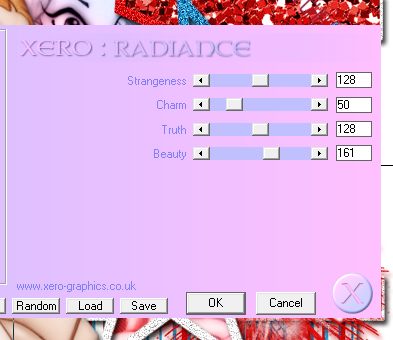
Add Xero Porcelain like below to the each layer of the tube.


Add Xero Radiance to each tube in the stars like below.


Add Penta - Jeans to the gradient layer behind the tube like below.


Now for the mask I used the same gradient as the layer for the star. 

The name is white. Select the pixels and expand by two. Fill the layer below the name with white and then add the gradient to it. Add a drop shadow to both layers.

Add your tagger mark and copyright information. 
Crop off extras of the tag.

Thanks for stopping by and I hope you enjoyed :)


Monday, May 20, 2013

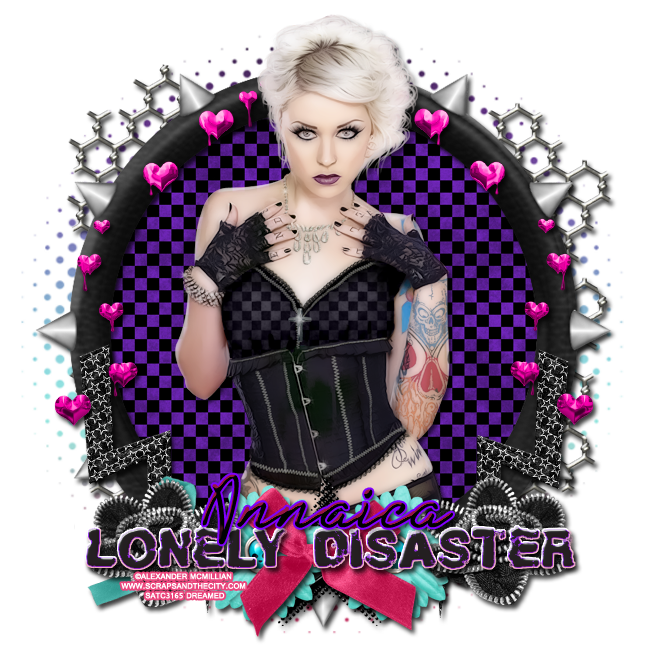
PTU Tutorial "Lonely Disaster"

I have a new PTU tutorial from Annaica's Place called Lonely Disaster. It's a great new kit for those emo/goth tags! I matched it with a tube by Alexander McMillian.

**This tutorial was written by me and any resemblance is purely coincidental. It is written for those with a working knowledge of Photoshop.**

What you will need:

Font
External Fascination
You can download it from FontSpace.

Mask
I used one of my masks: DC_Mask20.
You can download them here.

Tube
Anastasia
by Alexander McMillian
You can purchase it at Scraps and the City.
*You must obtain a license to use this tube.*

Elements
16
18
23
39
40
48
50
51
56
60

Papers
1

Have everything ready? Let's get started!

Open a new canvas, size 650x650.

Move element 56 on the canvas and resize. Add a drop shadow.

Place Paper1 behind the frame and resize so just a little is sticking outside the frame. Erase any extras.

Now place the tube in front of the frame and paper. Erase any parts that stick out over the frame. You can cover the bottom of her. Add a drop shadow.

Move element 51 behind the frame and paper. Resize so it doesn't stick out too much outside the frame and add a drop shadow.

Now place element 23 on the frame, but behind the tube. Start with the right side first. Resize the hearts can sit on the frame. Have the top of the hearts start behind her head. You will have to erase some the of hearts at the end. Add a drop shadow and duplicate then flip horizontally. Move the duplicate on the other side and place across from the right side.

Take element 39 and place it on top of the frame and to the right of the tube. Have the far left edge of the flower touch the tube. Resize and add a drop shadow. Duplicate the flower, flip horizontally and move to the other side of the tube.

Place element 50 behind the flowers. Resize so just little parts stick out above and below the flowers. Add a drop shadow.

Move element 48, the pink bow, on the frame. Place it somewhat in the middle of the frame and tube. Resize and add a drop shadow.

Now move element 40 behind the bow and the black flower on the right side. Resize and have just a little behind the black flower. Add a drop shadow, duplicate, and move the duplicate to the other side.

Take element 18 and place it behind the flowers and bow. Resize so it fills the empty space behind the bow and flowers. Add a drop shadow.

Move element 16 under everything but the frame on the left side. You will have to rotate it and resize a little. Add a drop shadow. Now duplicate, and flip horizontally and move to the other side.

Now place the word art, element 60, on top of everything. You will need to resize it so the ends just meet the ends of the black flowers on both sides. Add a drop shadow and a bevel. Change the shadow color to #c81f56 and gloss contour to Cove-Deep.

For the name, the font is External Fascination, place it over the middle of the word art. Add a drop shadow. Add a bevel and change the highlight and shadow mode to color code #c81f56, and change the gloss contour to Cove-Deep. Add a stroke, size 2, in the color #8000ff.

Now let's make the mask.
Open my mask, DC_Mask 20. Open two new canvases, size 600x600. Move the mask on to one of the blank canvases. With the other blank canvas add a new layer and fill white. Open the blending options to Gradient Overlay. Start with, left to right, #ba1148, add another one in #82e1da, the next one will be #4e1981, and then black. Space them out evenly and make it linear at a 90 degree angle (should be default). Now merge the layers and place this paper under the mask. Now remove the background of the mask and place it behind the tag. Stretch it out so you can see it outside the tag.

Add your tagger mark and copyright information somewhere on the tag so it cannot be easily erased, but it still visible.

Crop off any extra white space and be sure not to cute off any parts of the tag. Save as a .psd and .png.

I hope you enjoyed the tutorial! Thanks for stopping by :)

Friday, May 10, 2013

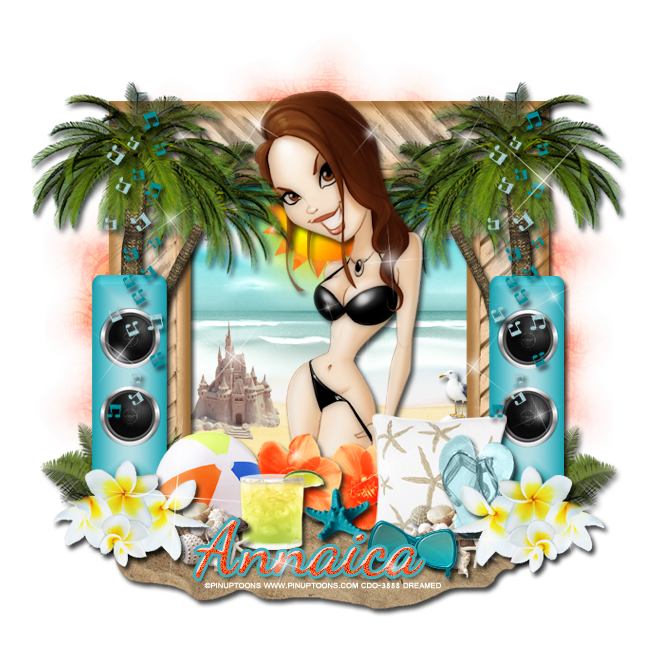
PTU Tutorial "Beach Party"

I have a new PTU Tutorial that is just in time for Summer! Beach Party, by Annaica's Place,  is so cute and I love the colors. I matched it with a cute and sexy summer tube by PinUp Toons.

**This tutorial was written by me and any resemblance is purely coincidental. It is written for those with a working knowledge of Photoshop.**

What you will need:

Font
Dancing Script
You can find it on FontSpace.

Mask
WSL_Mask133
You can find it on weescotslass creations

Tube
PinUp Toons 74-1
You can find it here.
**You must obtain a license in order to use this tube.**

Elements
Element7
Element11
Element14
Element16
Element18
Element19
Element20
Element22
Element23
Element25
Element27
Element30
Element31
Element32
Element36
Element37
Element43
Element50
Element54

Papers
Paper2
Paper9

Ready? Good :)

Open a new canvas, size 650x650.

Move Element50 on to the canvas. Resize, leave enough room around the outside for the mask and trees to stick out, and add a drop shadow.

Place Paper2 behind the frame. Resize it so most of the paper is visible in the frame's opening. There should be no extras hanging outside the frame.

Place Element30 on the white rock on the paper background. Resize so the size of the seagull is appropriate and add a drop shadow.

Take Element23 and place it on the opposite side of the seagull, resize so it's small and looks off in the distance somewhat, and flip horizontally. No need to add a drop shadow.

Move Element43 behind the tube's head. Don't make it too large. You can add the glow if you like or just leave it as is. What I did is this: Select the pixels of the sun and expand by 3. Then add a blank layer below the sun's layer and add the color of the glow you would like. I used #ffdb00. Make sure you have this layer selected and go to Filter > Blur > Gaussian Blur. Mine is at 15.4 pixels.

Now take Element11 and place is on the left side of the frame. Resize so it's not too large. I have mine stick out over the frame just a tad and a little taller than the middle of the frame with the base meeting the bottom of the frame. Add a drop shadow. Duplicate and mirror it on the other side of the frame.

Move Element14 on top of the blue speakers. Start on the left side. Resize the music notes so they meet the bottom speaker and reach to the top of the frame. Duplicate and mirror on the other speaker. Add a drop shadow to both.

Place Element32 behind the speaker and music notes. Flip Horizontally so it looks like the tree is leaning toward the middle of the frame. You will need to resize it so they tree doesn't hang off the canvas. Add a drop shadow and mirror on the other side.

Move Element31 behind the speaker on the left. Have it about as tall as the bottom speaker. Add a drop shadow, duplicate and flip horizontally, and move it behind the other speaker.

Take Element36 and place it in front of the speaker on the left. Resize so just a little sticks out over the side. Add a drop shadow, duplicate, flip horizontally, and move in front of the other speakers. 

Let's place the tube. I prefer to have the tube in front of the frame so you can either erase parts of the tube that stick over the frame on the bottom or just cover it up. Have her head stick out just a tad over the top, add a drop shadow.

Place Element19 behind the white and yellow plumerias in front of the speaker on the left. Flip the beach ball horizontally and resize so it doesn't stick over the frame too much. Add a drop shadow.

Move Element25 in front of the beach ball but behind the plumerias. Resize so they are smaller than the plumerias and add a drop shadow. Duplicate the cluster of shells, flip horizontally, and place behind the  plumerias on the right side too.

Place Element7 behind the cluster of seashells on the left and move it so just a little of the drink overlaps the beach ball. Add a drop shadow.

Take Element18 and place it in front of the speakers on the right. The pillow should meet the bottom of the seagull and overlap the tube just a little. Add a drop shadow to the pillow.

Move Element20 in front of the pillow and behind the plumerias. The flip flops should sit on the cluster of seashells too. Resize so they are smaller than the pillow. Add a drop shadow.

Place Element16 in front of the cluster of seashells on the right. Add a drop shadow, resize.

Move Element37 on a layer just above the frame so it is behind everything. Rotate it so you don't see any openings on the flower. Resize so it just sticks out over the tube a little. Add a drop shadow. Duplicate the flower and flip horizontally. Move the duplicate right next to the other one and fill empty space. Rotate the flower so it's not an exact copy. 

Place Element27 in front of the orange flowers. Make it smaller than the flowers and have it cover the opening in the middle between the flowers. Add a drop shadow.

Now take Element22 and place it under everything. Flip it vertically and have the sides meet the middle of the cluster of plumerias on both sides. Add a drop shadow.

Move Element54 on top of everything. You will need to resize it. To make sure you don't have much hanging outside the tag add a 50% gray layer just about the white background. You can resize it so it covers the whole tag and won't need to erase anything. 

Add a new layer below the sparkle layer you just made. Start the text tool and select Dancing Script. Use this color code #ff4d1b. Add a stroke, size 3, with this color #3cb1bd. Add a drop shadow and a bevel if you like. I did Cove-Deep with a white shadow. Add noise to the text. I did it about 11%.

Now open the mask, WSL_Mask133. Open a new canvas, size 600x600, and Paper9. Resize Paper9 to 600x600 also.

Place the paper on the new blank canvas and then the mask on top. Remove the white background then place behind the tag. You will have to stretch it out so be careful that the mask doesn't hang outside the canvas. I didn't have it stick out below the sand and just have a little hang out the top and the sides. 

Add your copyright information and tagger mark. Unclick the white and gray backgrounds if you haven't already and save as a .psd and .png.

I hope you had fun with this tutorial! This kit is perfect for summer and you can do much more with it :) Thanks for stopping by!

Monday, April 29, 2013

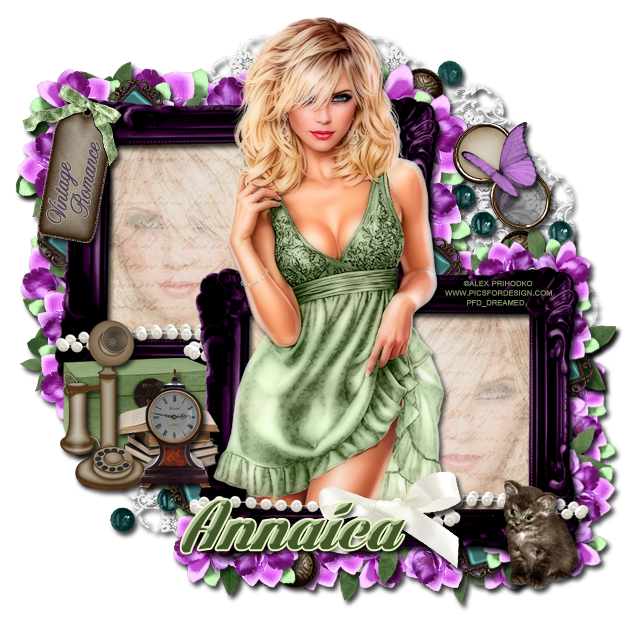
PTU Tutorial "Vintage Romance"

PTU Tutorial using Annaica's Place kit Vintage Romance. (It's gorgeous!) I used the perfect match artwork by Alex Prihodko, which you can find at PicsForDesign.

**This tutorial was written by me and any resemblance is purely coincidental  It is written for those with a working knowledge of Photoshop.**

Tools

Tube
Springtime by Alex Prihodko
You can find it here.
*You must obtain a license to use it.*

Font
Lighthouse
You can find it on dafont.
AltastGreeting
You can find it on Fonts101.

Elements
1
2
5
7
14
15
16
19
20
21
22
24
26
31
32
35
39

Papers
Paper4

Ready? Let's go!

Open a new canvas, size 650x650.
Move element 39, the purple frame on to the canvas. Resize so there is enough room for two frames. Add a drop shadow and duplicate the frame. Move the duplicate on top of the other frame so they overlap. Erase the lower right hand corner of the frame in the back that sticks through the frame in the front.

Move Paper4 behind the first frame. Resize so it only covers the back of one frame. Erase any extras, if there are any. Duplicate Paper4 and move it behind the other frame.

Move Element16 behind the frames. This will work as your mask. Have it fill the empty space in the corners where the frames connect. Add a drop shadow.

Now move Element24 on top of Element16. Resize so a little sticks on the open space to the right and left of the frames where Element 16 sticks out. It's ok to have a little stick outside Element16. Add a drop shadow.

Now the next part you can do it my way or add your own twist. Open Element 26 and resize. I started with the frame in the forefront and rotated the flowers so it fit the corner of the frame. Make sure you move it behind the paper and the frame so it doesn't stick through the front or you can just erase extras as you go. Now repeat this step around both frames. Rotate the flowers are you go so it has a free flow effect. 

After you have outlined the frames with flowers, you can use Element31 to accentuate the flowers. Make the leaves smaller and have some of it stick out and some can be hidden. Add a drop shadow to each layer. You can add as much or as little as you like. 

When you are done with the leaves, open Elements 19 & 32. Make them smaller and then stick them in the flowers randomly. Add a drop shadow to each addition.

Move Element20 to the top left hand corner of the frame in the back. Resize so it only covers half of the frame on the left. You can rotate it to the left a little too. I added "Vintage Romance" in the font, AltastGreeting, to the tag, but you can add what you like. I made the font purple, #5f325f, with a stroke of 1 in green, #9eb28a. No drop shadow.

Move Element22 in front of the frame in the front. Resize so just a little sticks out on both sides. Have the open end on the left hand side. Add a drop shadow. Duplicate,  flip horizontally, and then move to the other frame. 

Now move Element35 on top on Element22 for the frame in the front. Resize so it's not too big and sits in the middle of the frame. Add a drop shadow.

Move Element14 to the bottom right hand corner of the frame in the front. Resize and add a drop shadow.

Open Element 15 & 21. Place Element21 to the top right hand empty spot of the tag. Resize and rotate so the back of the compact faces the top. Place Element15 on top of the compact so it sits in the middle. Add a drop shadow to both.

Now we need Elements 1, 2, 5, 7. These will go on the empty space on the left hand side of the frames.
Move Element7 and resize so it's smaller and doesn't stick outside the tag too much. Add a drop shadow.

Move Element1 in front of the green chest and add a drop shadow.

Move Element2 in front of the green chest but behind the telephone, resize. Add a drop shadow.

Move Element5 in front of the books. Resize and add a drop shadow.

For the name you need to use Lighthouse. 
I used a darker color green for this, #42562a.
Add a stroke, size 2, with a lighter green, #eaf6c6.
You can add a bevel, change the Gloss Contour to Cove - Deep. Leave the shadow mode to white and the highlight mode to green, #c0d2ab.

Place your tube on top of the frame in the front. Have her head stick out above the frame in the back. Make her overlap the left side of the frame in the front just a little. Add a drop shadow.

Now move the tube on top of the paper but behind the frames so it appears to be her reflection. Flip the tube horizontally and move it to the left of her on the frame in the back. Change the fill to 50%. Erase any parts of the tube reflection that sticks outside the frame.

Move the tube again, do not flip horizontally, to the right of the main tube on the frame on the right. Again, change fill to 50%. Erase any extras hanging outside the frame.

Crop off any extras. Do not cut off parts of the tag.

Add your proper copyright information and tagger mark.

Save as .psd and .png.

Thanks for trying out my tutorial. This is a beautiful vintage kit! 

New Name, New Blog!

Hello friends! I have decided to change my designer name to reflect that I make kits more than I do CT work. I made a new blog so the old links for this blog will remain active for future visits. Please visit me at Drea's Designs ! I'll see you there!
Related Posts Plugin for WordPress, Blogger...